Keep any window always on top with one shortcut — a free 483KB window pinning tool rebuilt in Rust
PinTop is a free Windows utility that keeps the window you're using always on top with a single shortcut. v11 is rebuilt from scratch in Rust + Direct2D as a single 483KB executable — no installer, no .NET runtime. Per-window opacity, Ghost mode (click-through), Auto-pin, a tray right-click quick menu, pinned-window outlines and 4 languages.
v11.0.0·Published March 1, 2010·Updated October 20, 2026·Downloads 76,057·★4.6(10)
One shortcut keeps the window you're using on top. v11, rebuilt from scratch in Rust
PinTop is a free Windows utility that keeps any window floating above the others. Click a window and press Ctrl + Alt + Space to pin it; press again to release it. Sixteen years after the first version in 2010, it drops C# (.NET) and is completely rewritten in Rust + Win32 + Direct2D. No installer, no .NET runtime — just a single 483KB executable.
Free · No adsSingle 483KB EXENo install · No runtime한국어 · English · 中文 · 日本語
483KB
A single executable
v10 Full was 68MB
~4ms
Shortcut → on top
Average time until it shows on screen
0%
Idle CPU
Event-driven detection
~1MB
Idle memory
Per Task Manager
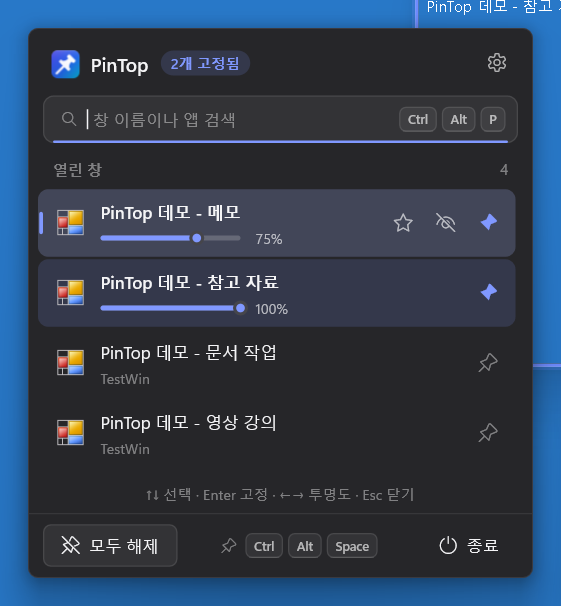
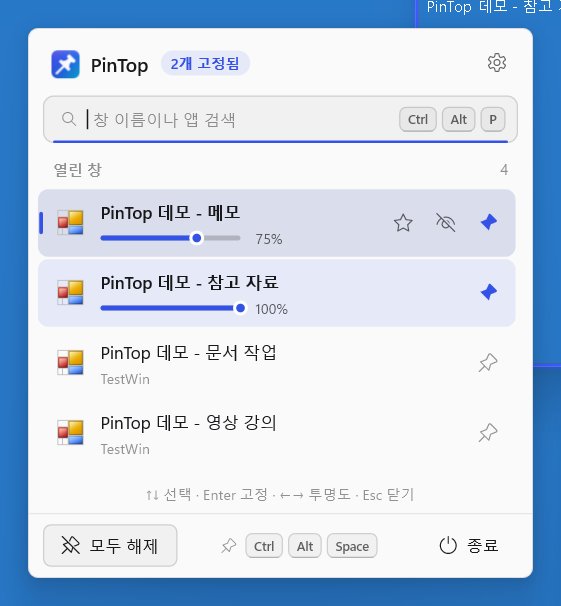
PinTop panel — Click the tray icon or press Ctrl + Alt + P to open it. Two windows are pinned on top (blue pins), and the notes window is set to 75% opacity. Dark and light switch instantly with the system theme.
01 · REBUILT IN RUST
v10 → v11: what changed
v11 isn't a patch to the old code — it's a brand-new program built from scratch. The language moved from C# (.NET 8) to Rust, and the UI is drawn with Windows' own Win32 API and Direct2D. So there's no runtime to install, and it responds the instant you press a key.
v10.8 (previous)v11.0 (new)
LanguageC# (.NET 8) · Windows FormsRust + Win32 API + Direct2D
DownloadLite 218KB (needs .NET 8) / Full 68MBSingle 483KB EXE, no runtime
RenderingGDI+ owner-drawDirect2D + DirectWrite, crisp on high-DPI displays
Window trackingPeriodic checksEvent-driven — 0% CPU while idle
Pinned indicatorNoneColored outline on pinned windows
✓Ghost mode — semi-transparent pin + mouse clicks pass through to the window behind
✓Search panel — find by window or app name and pin instantly
✓Tray right-click quick menu — pick a window name and it applies instantly
✓Pinned-window outline
✓Enforced always-on-top — re-pins apps that drop it on their own
✓Pin admin windows · Recovery after a crash · Command-line options
02 · MEASURED
Measured speed
Test PC: Windows 11 (build 26300), 2560×1600 display. Measured on the release build with all 14 automated tests passing.
MetricResult (bar: 20ms scale)
Launch → tray ready~15ms (avg of 10 runs)
Shortcut → window pinned (inside PinTop)0.2ms avg
Key press → window actually on top~4ms avg
Open the panel~5–10ms (15–20ms after a long idle)
Build the tray right-click menu~0.5ms (~5ms the first time)
Change opacity~2ms
Exit + restore every window~18ms
Idle CPU0% — 0ms of CPU time over 10 seconds
Idle memory~1MB(per Task Manager) — uses more while drawing the panel or settings, and releases UI resources 30 seconds after last use
03 · HOW TO
Three steps to use it
1Run
PinTop.exe — double-click to start. Nothing is installed; a pin icon appears in the tray and the panel opens.
2Pin
Click the window you want to pin and press CtrlAltSpace. A blue outline appears around it.
3Release
Press the same shortcut again to release it. On first launch, a short how-to tip appears once in the bottom-right corner.
Prefer the mouse? Tray icon: left-click opens the PinTop panel (search · opacity sliders); right-click opens a quick menu where you pick a window name and it applies instantly.
04 · PIN & OUTLINE
Always on top, with a pinned-window outline
CtrlAltSpace pins the window you're using on top in one press. It uses only Windows' built-in hotkey feature (RegisterHotKey), with no keyboard hook, so it never slows down other programs' keyboard input. Pinned windows get a colored outline, so you can see at a glance which ones are pinned.
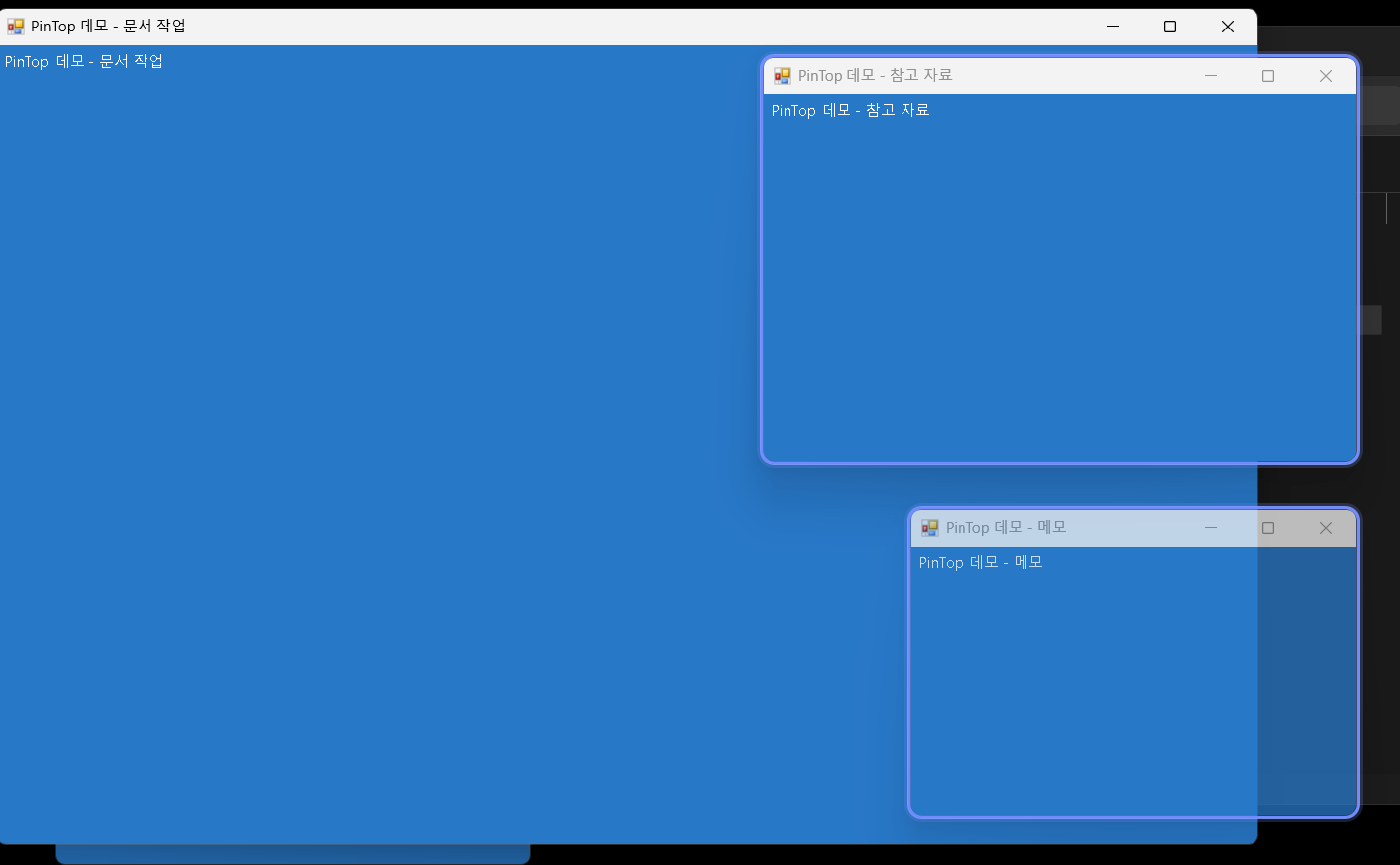
Pinned-window outline — The “Reference” and “Notes” windows on the right are pinned and have blue outlines. The notes window below has lower opacity, so the document window behind it shows through. The outline follows the window when you move or resize it, and clicks pass straight through.
📌
Pin / unpin with a shortcut
The same key toggles it on and off. Calls are asynchronous, so PinTop never freezes even if a window is not responding.
🟦
Outline
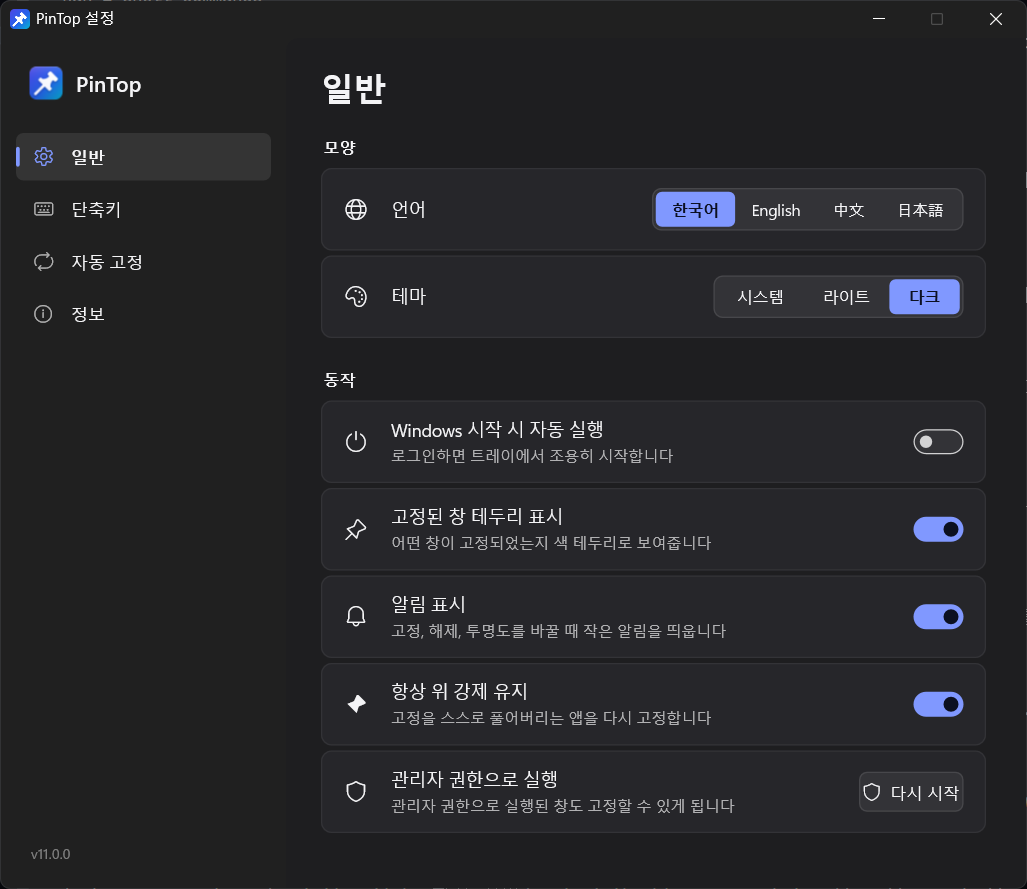
Turn it off in Settings → General → “Show pinned-window outline”.
05 · OPACITY & GHOST
Per-window opacity and Ghost mode
CtrlAlt↓ makes a window more transparent, CtrlAlt↑ less transparent. Adjust in 10% steps from 20% to 100%; hold the keys to change continuously. You can also use the panel slider, the mouse wheel, or the tray right-click menu.
🌗 Per-window opacity
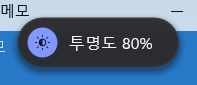
Remembered separately for each window. A small notification briefly appears with each change (you can turn it off in Settings).
👻 Ghost modeNEW
CtrlAltG pins the window semi-transparent and lets mouse clicks pass through to the window behind it. Keep a video or reference open and keep working in the window underneath. Press the same key again to return to normal.
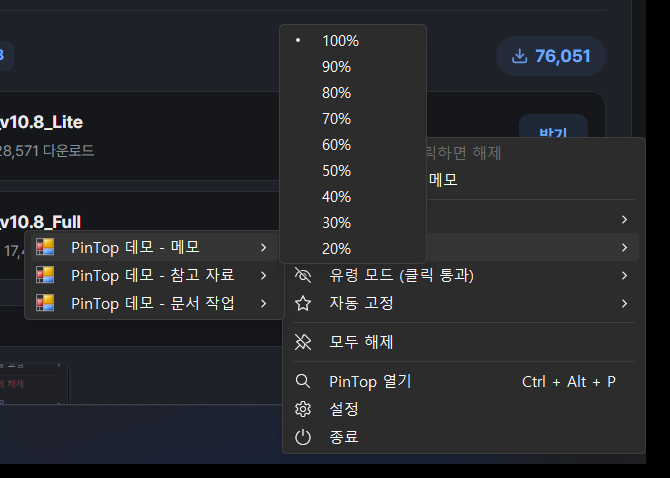
Pick opacity from the menu — Right-click the tray icon → Opacity → window name → choose 100%–20% and it applies instantly.
06 · PANEL & SEARCH
PinTop panel — find and pin instantly
Run PinTop, left-click the tray icon, or press CtrlAltP to open the panel. Search by window or app name (Korean input supported) and pin or unpin with one click. Pinned windows get an opacity slider right there, and every row has ★ Auto-pin and 👻 Ghost mode buttons.
↑↓Select window
EnterPin / unpin
←→Adjust opacity
EscClose panel
Keyboard only: the panel can be operated entirely without a mouse. Click the shortcut shown at the bottom to jump straight to shortcut settings.
07 · QUICK MENU
Tray right-click quick menu
On the tray icon, right-click to open a native Windows menu instantly, with no animation. Submenus list the windows currently open, and your choice applies immediately. Pinned windows appear separately at the top, so you can release them with one click.
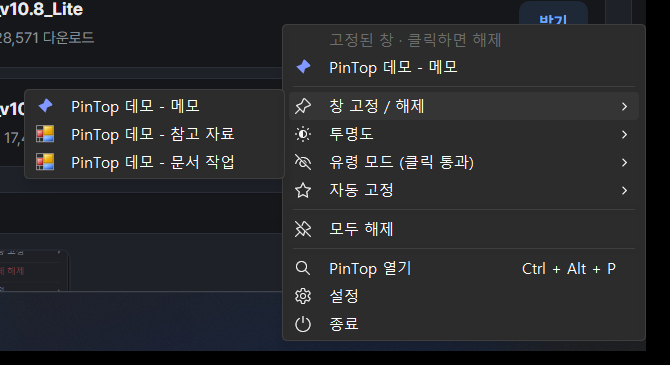
Pin / unpin ▸ window list — Under “Pinned windows · click to release” at the top is the notes window; pick another window from the submenu to pin it instantly. Windows that are already pinned show a blue pin.
Pin / unpin ▸Open windows (pinned ones show a blue pin)
Opacity ▸Window ▸ 100% · 90% · … · 20%
Ghost mode ▸Open windows
Auto-pin ▸Running apps (enabled ones show ★)
OtherUnpin all · Open PinTop · Settings · Exit
08 · AUTOMATION
Auto-pin · Enforced on top · Admin windows
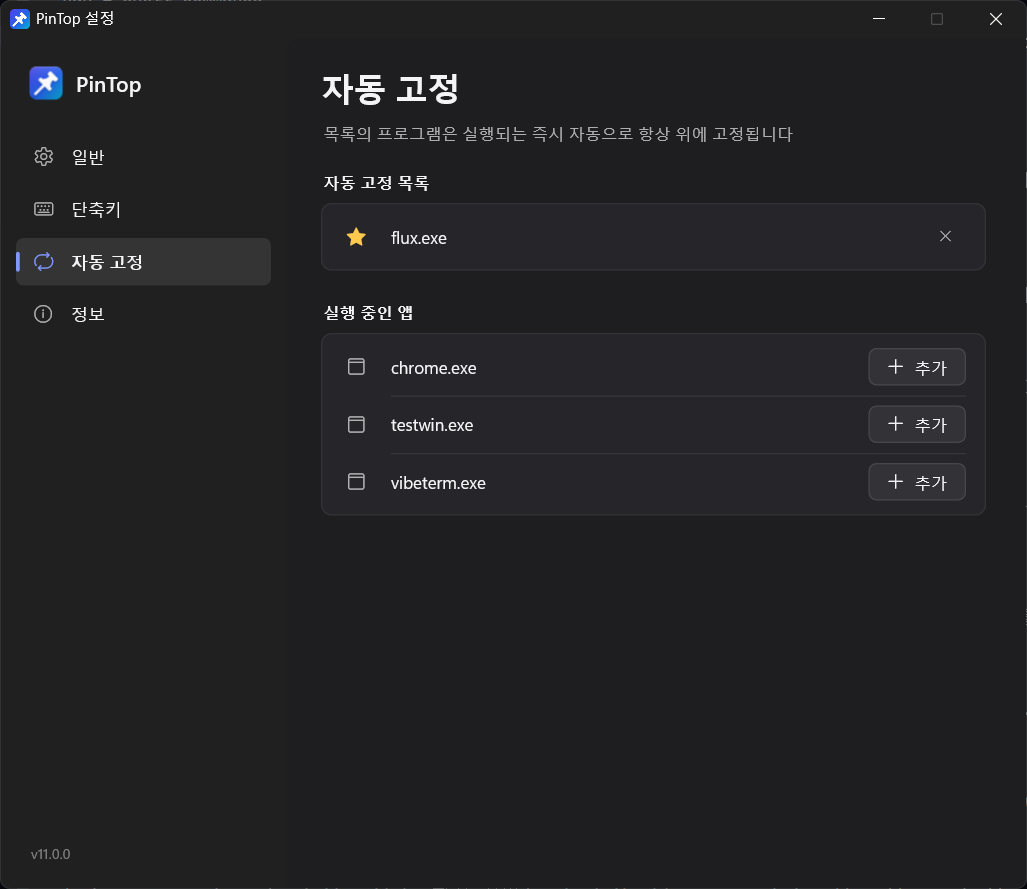
Add programs you open often to the Auto-pin list and they're pinned the moment they launch. Instead of polling, it reacts to Windows window events, so it uses no CPU while waiting.
Settings → Auto-pin — Click [+ Add] next to a running app, or click ★ in the panel or right-click menu, to add it to the list.
🛡️
Enforced always-on-top
If an app drops its pinned state on its own, PinTop pins it again automatically.
🔐
Pin admin windows too
Windows' security policy prevents normal programs from pinning windows that run as administrator. PinTop tells you when this happens; go to Settings → General → Run as administrator → [Restart] to switch to admin mode while keeping your pinned windows as they are.
💾
Safe exit and recovery
When you quit PinTop, pins, opacity and Ghost mode all return to normal. Even after a crash, relaunching it picks up the existing windows where it left off.
🎨
Themes · 4 languages
Follows the system theme automatically. 한국어 · English · 中文 · 日本語 switch instantly, no restart needed.
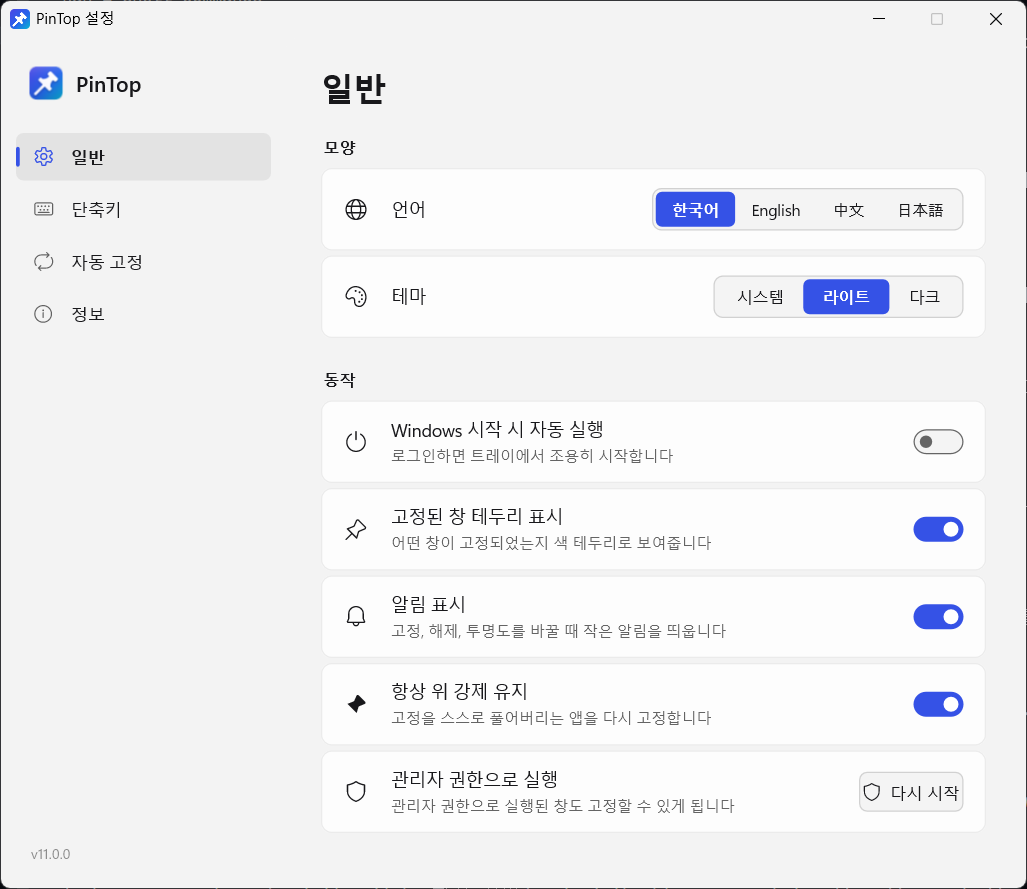
Settings → General — Set language and theme, run at Windows startup, outline, notifications, enforced always-on-top and restart as administrator, all on one screen.
09 · SHORTCUTS
Default shortcuts
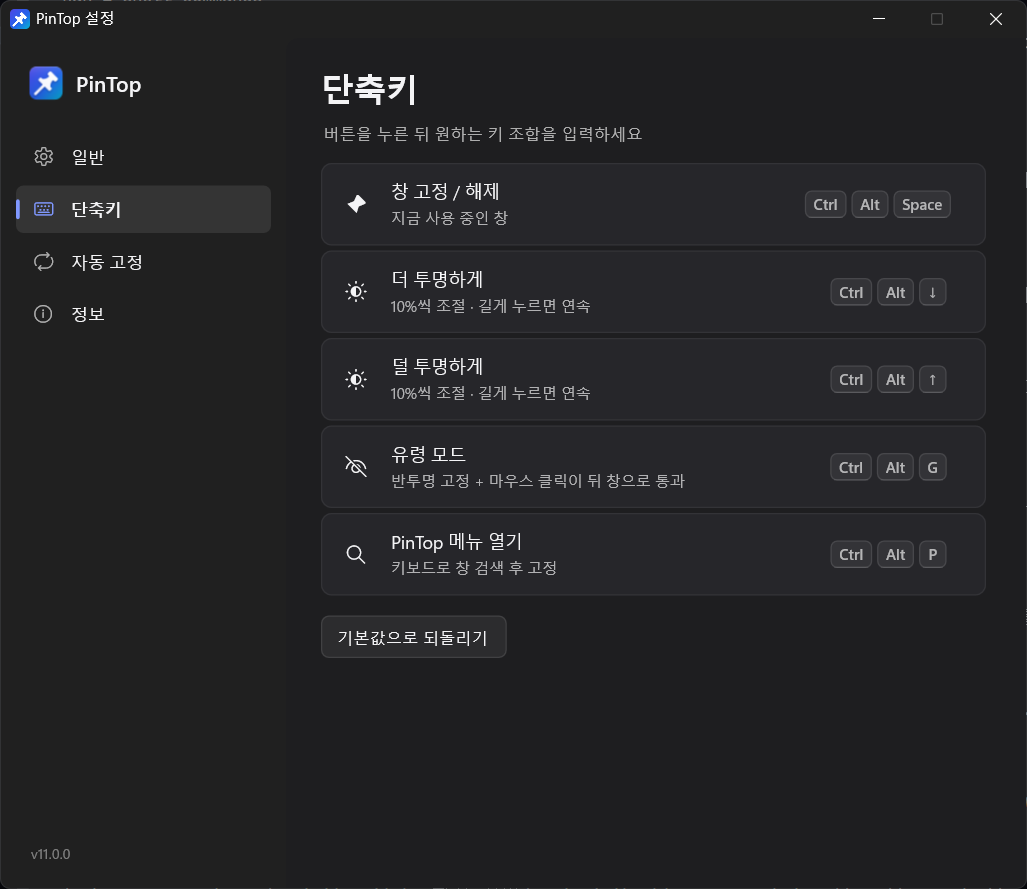
Pin / unpinCtrlAltSpace
More transparentCtrlAlt↓
Less transparentCtrlAlt↑
Ghost mode on / offCtrlAltG
Open PinTop panelCtrlAltP
Changing shortcuts: In Settings → Shortcuts, click the item to change and press the new key combination. Esc cancels, Backspace clears the shortcut. Shortcuts already used by another program are shown in red.
Settings → Shortcuts — Click a button and type the key combination you want; it changes immediately. [Restore defaults] puts everything back.
10 · PORTABLE & CLI
Settings file · Portable · Command line
Settings file%APPDATA%\PinTop\PinTop.ini — a single text file
Portable (USB)PinTop.exe — put an empty PinTop.ini in the same folder to keep settings there
RegistryUsed only when “Run at Windows startup” is on (HKCU\…\Run)
InternetNot used — there's no networking; only the [Homepage] button on the About screen opens this page in your browser
Command-line options are available for shortcuts and scripts. If PinTop is already running, the options are passed to the running instance.
--menuOpen the panel
--settingsOpen settings
--pin=TEXTPin the window whose title contains “TEXT”
--unpin=TEXTUnpin it
--opacity=70:TEXTSet its opacity to 70%
--exitQuit PinTop (restores every window)
11 · UNDER THE HOOD
How it works · Specs
LanguageRust — no external runtime, statically linked
Window trackingSetWinEventHook — no polling; watches only the processes it needs
Outline · NotificationsClick-through layered windows (UpdateLayeredWindow)
Right-click menuNative Win32 menu (TrackPopupMenuEx), app icons cached as 32-bit alpha bitmaps
MemoryFrees screen buffers and icon cache and returns the working set 30 seconds after last use
Single instanceEnforced with a mutex — launching again opens the existing PinTop's panel
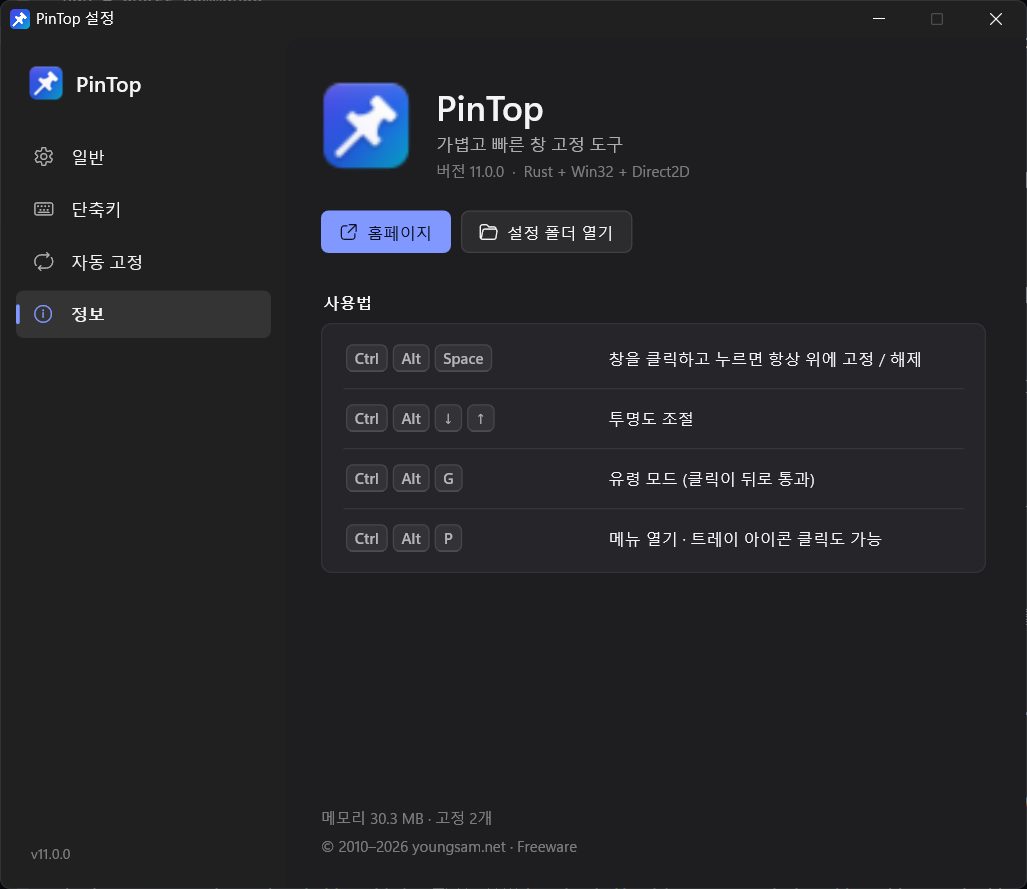
Settings → About — Version, a quick usage summary, and buttons to open the homepage and settings folder.Light theme — When the system is in light mode, settings, panel and menus all switch to light.
12 · WHO IT'S FOR
Who it's for
🎬
Working while watching videos
Pin a lecture or video in a small window and turn on Ghost mode — clicks on the video land on the window underneath.
💬
Messenger · Notes · Calculator
For anyone who wants a translator, calculator or notes always within view.
🧑💻
Coding with references
Keep docs or video-call material on top and work underneath.
🖥️
Multitasking on one monitor
Especially handy on small laptop screens where windows overlap.
13 · DOWNLOAD
Download (free)
Just PinTop.exe — download it and run. No installer, no .NET runtime, no admin rights required. If your browser or company security policy makes it hard to download an .exe directly, get the ZIP with the same file inside.
PinTop.exeRecommended
PinTop-11.0.0-x64.exe483KB
✓Download, double-click, done
✓Windows 10 (1809 or later) / 11 · x64
✓To uninstall, just delete the file
ZIP bundleSame file
PinTop-11.0.0-x64.zip286KB
✓PinTop.exe + 읽어주세요.txt
✓For environments that block .exe downloads
✓Great for carrying portably on a USB stick
Use the buttons in the download box above. If you need the old v10.8 (Lite · Full), get it from “Version history” below.
If you see "Windows protected your PC" on first launch, it's because the program isn't signed with a code-signing certificate. [More info] → [Run anyway] Just click that. You can first check that the downloaded file matches the original with the SHA-256 values below.
v11.0 2026.10.20Rewritten from scratch in Rust + Win32 + Direct2D. Single 483KB EXE (no runtime), tray right-click quick menu, pinned-window outline, Ghost mode, search panel, event-driven auto-pin, enforced always-on-top, switch to admin mode, crash recovery, command-line options, new icon and Fluent design
v10.8 2026.03.30Multilingual UI (Korean · English · Chinese · Japanese), language switching without restart, dark · light · auto themes, Lite / Full builds
v9.0 2024.08.15Auto-pin favorites, custom shortcuts, custom menu UI, move to .NET 8
v7.5 2023.02.10Per-window opacity, revamped tray menu, open-window list
v5.0 2020.11.20Move to .NET Core, single-EXE distribution, memory optimization
Windows 10 and 11 have no built-in menu to keep any window always on top. Run PinTop, click the window you want to pin, and press Ctrl + Alt + Space — that window stays above all others. Press the same keys again to release it.
Do I need to install it? Does it need .NET?
No. In v11 you just run PinTop.exe. There's no installer and no runtime such as .NET. Unlike the v10 Lite edition, you no longer need to install .NET 8 separately.
Ctrl + Alt + Space doesn't work.
Another program may be using the same shortcut — the Claude desktop app, for example, also uses Ctrl + Alt + Space. In that case PinTop tells you when it starts, and a ⚠ appears on the shortcut shown at the bottom of the panel. Click it and change to a different key combination.
Can I make a window semi-transparent and still click the window behind it?
Yes — that's Ghost mode (Ctrl + Alt + G). The window is pinned semi-transparent and mouse clicks pass through to the window behind it. Press Ctrl + Alt + G again to return to normal.
Some windows can't be pinned.
They are most likely running as administrator. Go to Settings → General → “Run as administrator” and click [Restart]; PinTop switches to admin mode while keeping your pinned windows, and can then pin those windows too.
What happens to pinned windows when I quit PinTop?
Pins, opacity and Ghost mode all return to normal. Even if PinTop crashes, relaunching it picks up the existing windows where it left off.
I can't see the tray icon.
Windows 11 puts new tray icons in the hidden area (^). Drag the icon onto the taskbar, or turn PinTop on under Settings → Personalization → Taskbar → Other system tray icons. Double-clicking PinTop.exe again or pressing Ctrl + Alt + P also opens the panel.
Are my v10 settings carried over?
No — v11 uses a new settings format, so they aren't migrated automatically. You only need to set your shortcuts and auto-pin apps again. If you used v10, quit it before running v11.
Can I run it portably from a USB stick?
Yes. Create an empty PinTop.ini file in the same folder as PinTop.exe and settings are saved in that folder. The registry is used only when “Run at Windows startup” is on.
Does it connect to the internet or send any data?
No. PinTop has no networking at all. Only the [Homepage] button on the About screen opens this page in your default browser.
Is it really free?
Yes. It's free for personal and business use, with no ads and no sign-up. If it helps you, a Buy Me a Coffee would mean a lot.
Version history(7)
v11.0.0Latest
October 20, 2026
Rust + Win32 + Direct2D로 처음부터 다시 작성. 단일 EXE 483KB(런타임 불필요), 트레이 우클릭 빠른 메뉴(창 이름 하위 메뉴), 고정 창 테두리, 유령 모드(클릭 통과), 검색 패널, 자동 고정 규칙 개선(이벤트 방식), 항상 위 강제 유지, 관리자 모드로 넘어가기, 비정상 종료 복구, 명령줄 옵션, 새 아이콘과 Fluent 디자인.